A company represents a unit of the budget evolution. Depending on your organization, a company can be an actual company, a department or a particular activity in your company.
When setting up companies, a specific step is required: the setup of the automated VAT calculation.
The company is defined in the data repository of Sage XRT Treasury. You can set them up via the Setup module.
 Accessing Setup Page for Companies
- In the Modules Tasks pane, select the Setup module from the accordion tab.
The tasks of the module are displayed in this pane. - Select the Companies option in the Setup folder of this module.
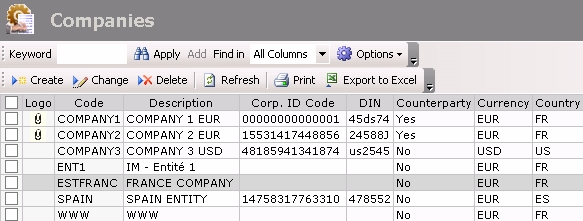
The setup page for companies is displayed with the list of the existing companies in a table.
The company's code is displayed in the second column of the table.
For more information on:
- Reorganization of the lines display in the table, click here
- how to search text in the table, click here
- how to create lines, see the topic below,
- modifying lines in the table, click here
- deleting lines in the table, click here
You can change the layout of the table: columns display, filtering on selection criteria, lines grouping according to criteria, etc. For more information on this feature, see topic Table Reorganization.
Creating Companies
Info
This procedure only presents the fields that are useful to the Budget Management. If you want more information on the other fields, see the documentation of the Common Setup module.
- In the setup page for companies, click the Create button.
The Identification is displayed on the creation page. This tab enables you to save the standard information used for the unique identification of the company.
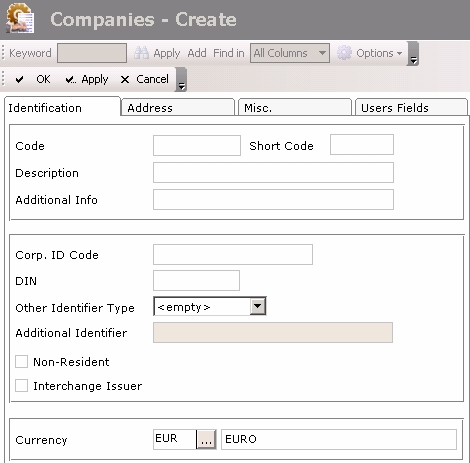
- In this tab, enter the code and description of the company.
- Click the Address tab.
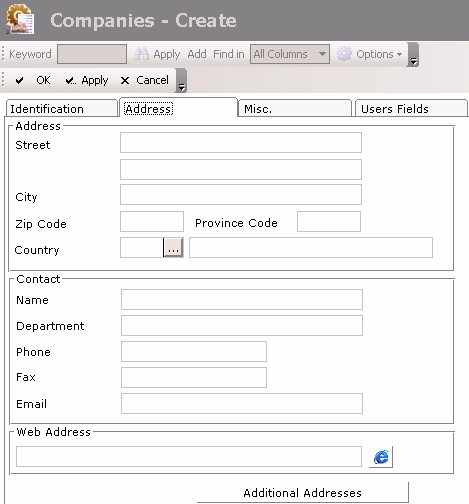
- In the Country area, follow the process below to select the country of the company:
- Click the button
 to display the list of the set up countries.
 - In the contextual window, double-click the line to select it.
The code and name of the selected country are displayed in the Address tab.
- Click the Misc. tab.
This tab enables you to enter the settings for the automatic VAT calculation.
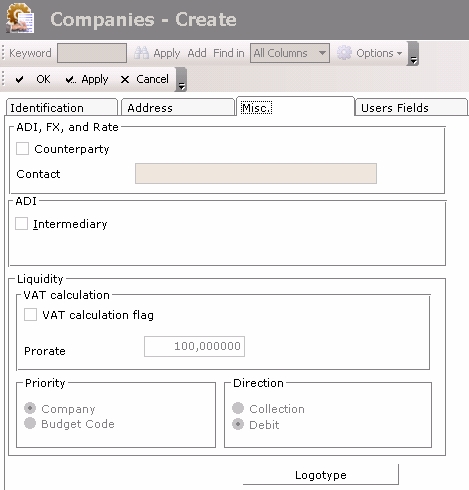
- In the Liquidity section, complete the VAT Calculation, Direction and Priority areas.
To view examples of VAT calculation according to the direction, click here.
The other fields of this page are not relevant concerning the budget management.
- Click the following buttons, as needed:
- Apply to save the setup of the company and create another one,
- OKto save the setup of the company and redisplay the list of the set up companies,
- Cancel to cancel the setup of the company


